




Laptop Not Turning On
Has your laptop suddenly stopped responding when you press the power button? A laptop not turning on can be frustrating, especially when you have important work, online classes, or personal files to access. Fortunately, a laptop that refuses to start doesn’t always mean it’s permanently damaged.
In many cases, the issue can be caused by a faulty charger, battery problem, RAM issue, or a temporary power glitch. Before spending money on a replacement, follow these five troubleshooting steps to identify the possible cause of your laptop not turning on.
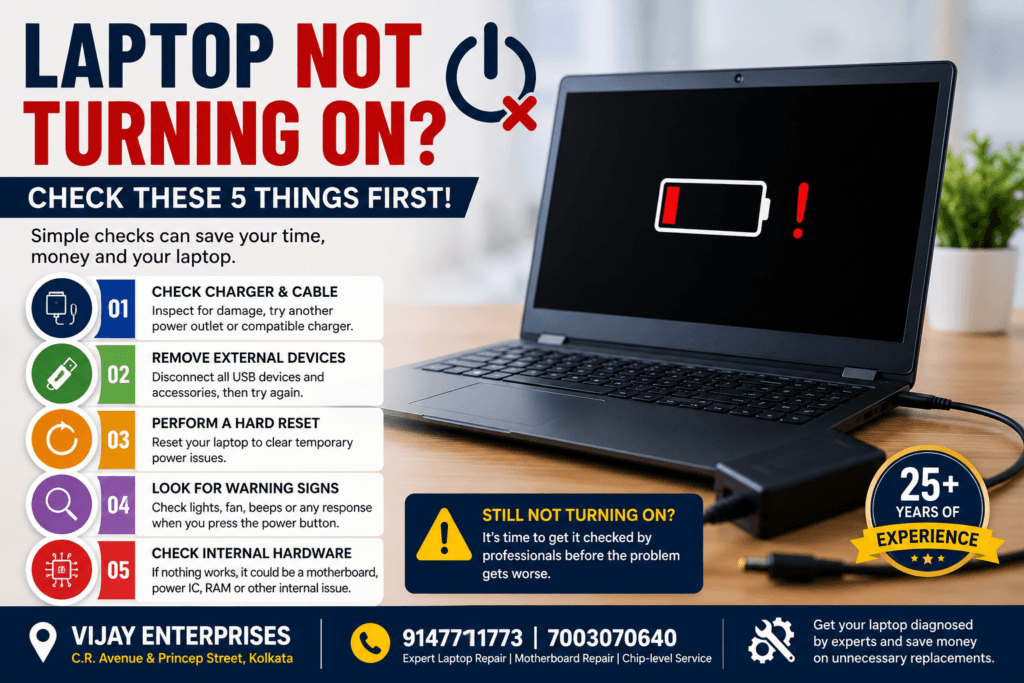
1. Inspect the Charger and Power Supply
The first thing to check when your laptop not turning on is the power source. A damaged adapter or charging cable is one of the most common reasons laptops fail to start.
Carefully inspect the charger for:
- Broken or exposed wires
- Loose charging connector
- Bent charging pin
- Burn marks or overheating
- Physical damage to the adapter
Also, try plugging the charger into another wall socket. If available, use another compatible charger to determine whether the original adapter is faulty.
Many laptops are mistakenly considered dead when the real problem is simply a defective charger.
2. Disconnect Every External Device
External accessories sometimes interfere with the laptop’s startup sequence.
Remove all connected devices, including:
- USB flash drives
- External hard drives
- Memory cards
- Printers
- HDMI cables
- USB hubs
- External keyboard and mouse
Once everything is disconnected, press and hold the power button for about 20 seconds before trying to turn the laptop on again.
If your laptop not turning on, a faulty USB device or peripheral may be preventing the system from booting properly.
3. Perform a Power Reset
Power fluctuations can leave residual electrical charge inside your laptop, preventing it from starting.
For removable battery laptops
- Turn off the charger.
- Remove the battery.
- Hold the power button for 30 seconds.
- Reinsert the battery.
- Connect the charger.
- Start the laptop.
For built-in battery laptops
- Disconnect the charger.
- Hold the power button for 30 seconds.
- Reconnect the charger.
- Power the laptop back on.
This simple method often resolves temporary power issues responsible for a laptop not turning on.
4. Observe What Happens During Startup
Even if your laptop doesn’t fully boot, it may still provide useful clues.
Check whether:
- The charging LED lights up.
- The power indicator turns on.
- The cooling fan spins.
- You hear beeping sounds.
- The keyboard backlight works.
- The display remains black.
These symptoms help identify the actual fault.
For example:
- A black screen with power lights may indicate display, RAM, or graphics issues.
- No power light at all could point to motherboard or charging circuit failure.
- Repeated beeps often suggest faulty RAM or memory errors.
Understanding these signs makes diagnosing a laptop not turning on much easier.
5. Rule Out Internal Hardware Failure
If you’ve completed all the above checks and your laptop not turning on, internal hardware may be responsible.
Possible causes include:
- Motherboard failure
- Power IC damage
- Charging circuit malfunction
- Faulty RAM
- BIOS corruption
- SSD or HDD failure
- Liquid damage
- Short circuit on the motherboard
Fortunately, not every motherboard problem requires replacement. Modern chip-level repair techniques can often restore the motherboard while saving a significant amount compared to buying a new one.
Common Reasons Why a Laptop Is Not Turning On
A laptop not turning on can occur for several reasons, including:
- Dead or faulty battery
- Damaged charger
- Loose charging port
- Defective RAM
- Motherboard failure
- Corrupted BIOS
- Overheating
- Liquid damage
- Power IC failure
- Internal short circuit
Professional diagnostic equipment is often needed to determine the exact cause.
When Should You Visit a Laptop Repair Expert?
You should seek professional assistance if your laptop not turning on and you notice any of the following:
- No response after charging
- Laptop powers off immediately
- Burning smell or overheating
- Water or liquid damage
- Charging light blinking continuously
- Black screen with no display
- Strange beeping noises
- Laptop charging but refusing to start
Ignoring these symptoms may lead to more expensive repairs later.
Why Choose Vijay Enterprises?
For over 25 years, Vijay Enterprises has been providing trusted laptop repair services in Kolkata.
Our experienced technicians offer:
- Laptop motherboard repair
- Chip-level motherboard repair
- Laptop charging port repair
- RAM upgrade and replacement
- SSD installation and replacement
- Laptop screen replacement
- Keyboard repair
- Hinge repair
- Liquid damage repair
- Complete laptop diagnostics
We repair laptops from Dell, HP, Lenovo, ASUS, Acer, MSI, Apple MacBook, Samsung, Toshiba, and many other leading brands.
Final Thoughts
A laptop not turning on isn’t always a sign that you need a new laptop. Many startup problems are caused by simple issues such as a faulty charger, discharged battery, damaged RAM, or power circuit failure—all of which can often be repaired.
Before replacing your laptop, try these troubleshooting steps. If your laptop not turning on continues after completing these checks, it’s time to consult experienced technicians.
At Vijay Enterprises, we provide accurate diagnostics, chip-level motherboard repair, and affordable laptop repair solutions to help you get your device running again quickly.
Contact Vijay Enterprises
📍 Address: C.R. Avenue & Princep Street, Kolkata
📞 Call: 9147711773 | 7003070640
If your laptop not turning on, visit Vijay Enterprises today for a professional diagnosis and reliable repair service. Our experts will identify the exact problem and recommend the most cost-effective solution to get your laptop back in working condition.

