




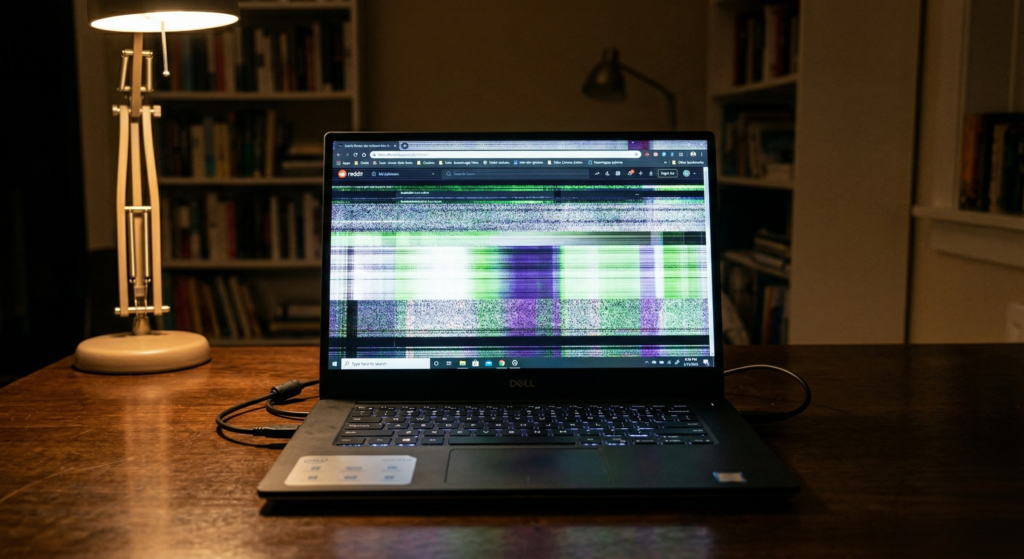
Laptop screen flickering is one of those problems that seems small at first — and then suddenly it’s all you can think about. One minute you’re finishing a report or binge-watching something, and the next, your screen is strobing like a broken tube light. Annoying? Absolutely. But here’s the thing — it’s usually fixable.
At Vijay Enterprises, we deal with laptop display problems every single day. And the first thing we tell every customer who walks in is: don’t panic. Let’s figure out what’s actually going on.
What Causes Laptop Screen Flickering?
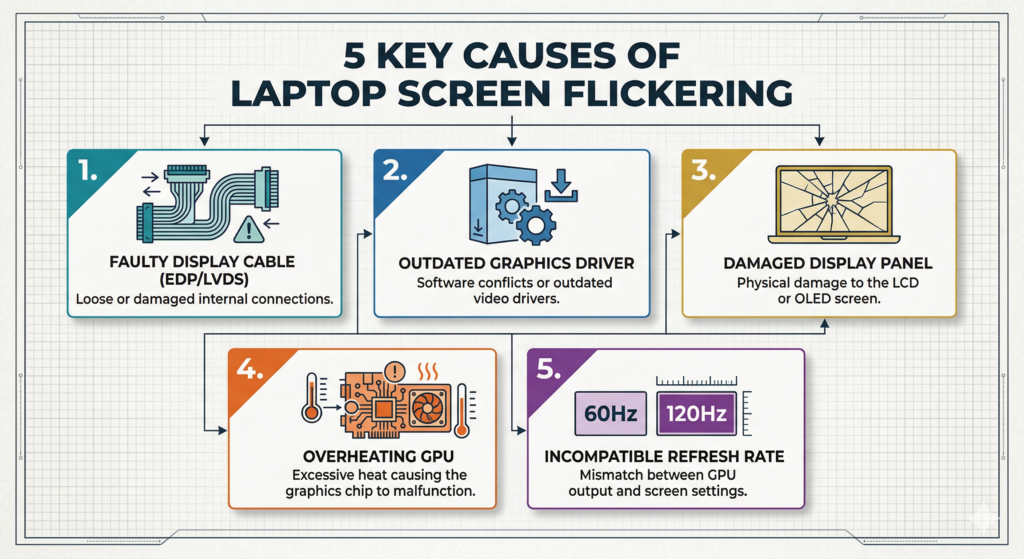
There’s rarely just one answer. But after years of doing laptop screen repair in Kolkata, we’ve seen the same five culprits come up again and again.
1. Loose or Damaged Display Cable
Inside your laptop lid sits a thin ribbon cable that connects your screen to the motherboard. Every time you open and close your laptop — probably hundreds of times a year — that cable takes a little stress. Over time it loosens or frays, and the flickering begins. A telltale sign? The flicker gets worse when you tilt the lid at certain angles.
2. Outdated or Corrupted Display Drivers
Your screen isn’t just hardware — it’s also controlled by software called display drivers. When these get corrupted or fall out of date, your laptop display problem can show up as flickering, stuttering, or random brightness changes. We’ve seen a simple driver update fix issues customers thought would need a full screen replacement.
3. Failing Backlight
On older laptops especially, the backlight behind the screen can start giving up. You’ll usually notice the flickering gets worse at lower brightness levels. The panel itself might be perfectly fine — it’s just the light behind it fading out.
4. GPU or Graphics Card Issues
If your flickering shows up even on an external monitor, the problem likely isn’t your screen at all — it’s your graphics card. This is a more serious hardware issue, but still very repairable when caught early.
5. Software Conflicts
Certain apps — especially screen recorders, older games, or utilities that mess with refresh rates — can trigger flickering too. It’s less common, but worth ruling out.
How to Fix Laptop Screen Flickering at Home
Before rushing to a repair shop, try these steps:
Test with an external monitor. Plug your laptop into a TV or monitor via HDMI. If the external screen is stable, your issue is with the laptop display itself — not the GPU. That narrows things down immediately.
Update your display drivers. Open Device Manager, find your Display Adapter, right-click, and select Update Driver. Takes two minutes and occasionally solves everything.
Adjust your refresh rate. Right-click your desktop, go to Display Settings, then Advanced Display Settings. Try switching between available Hz options — sometimes 60Hz vs 75Hz makes a real difference.
If none of that helps — or the flicker is getting worse — it’s time to bring it in.
When to See a Technician
A laptop screen flickering problem that gets ignored almost always becomes a bigger, costlier issue. What starts as occasional flashing can develop into permanent display lines, a completely black screen, or even damage to the motherboard connector. Catching it early saves money. Simple as that.
Get Your Laptop Fixed at Vijay Enterprises, Kolkata
At Vijay Enterprises, we’ve been solving laptop display problems for customers across Kolkata for years. We diagnose first, explain clearly, and only fix what actually needs fixing. No unnecessary replacements, no confusing jargon — just honest, skilled work at fair prices.
Come see us at either of our locations:
📍 15, C.R. Avenue, Kolkata – 700072 📍 25 No, Princep St, Kolkata – 700072 📞 7003070640
If your screen is acting up, don’t sit on it. Give us a call or walk in — we’ll sort it out the same day in most cases. For dependable laptop repair in Kolkata, Vijay Enterprises is right here when you need us.

